What is GA4? — Concept and Structure
A guide to completely understand in one article: from the background of Google Analytics 4 (GA4)'s emergence, event-based data structure, differences with UA, to key terminology
GA4 Introduction
When you first open a GA4 report, the numbers feel unfamiliar. If you're coming from UA, even more so. It's clearly the same website, but the visitor count is different, and bounce rate seems to be defined differently somewhere.
The source of this unfamiliar feeling isn't the menu structure. GA4 sees websites from a fundamentally different perspective than UA.
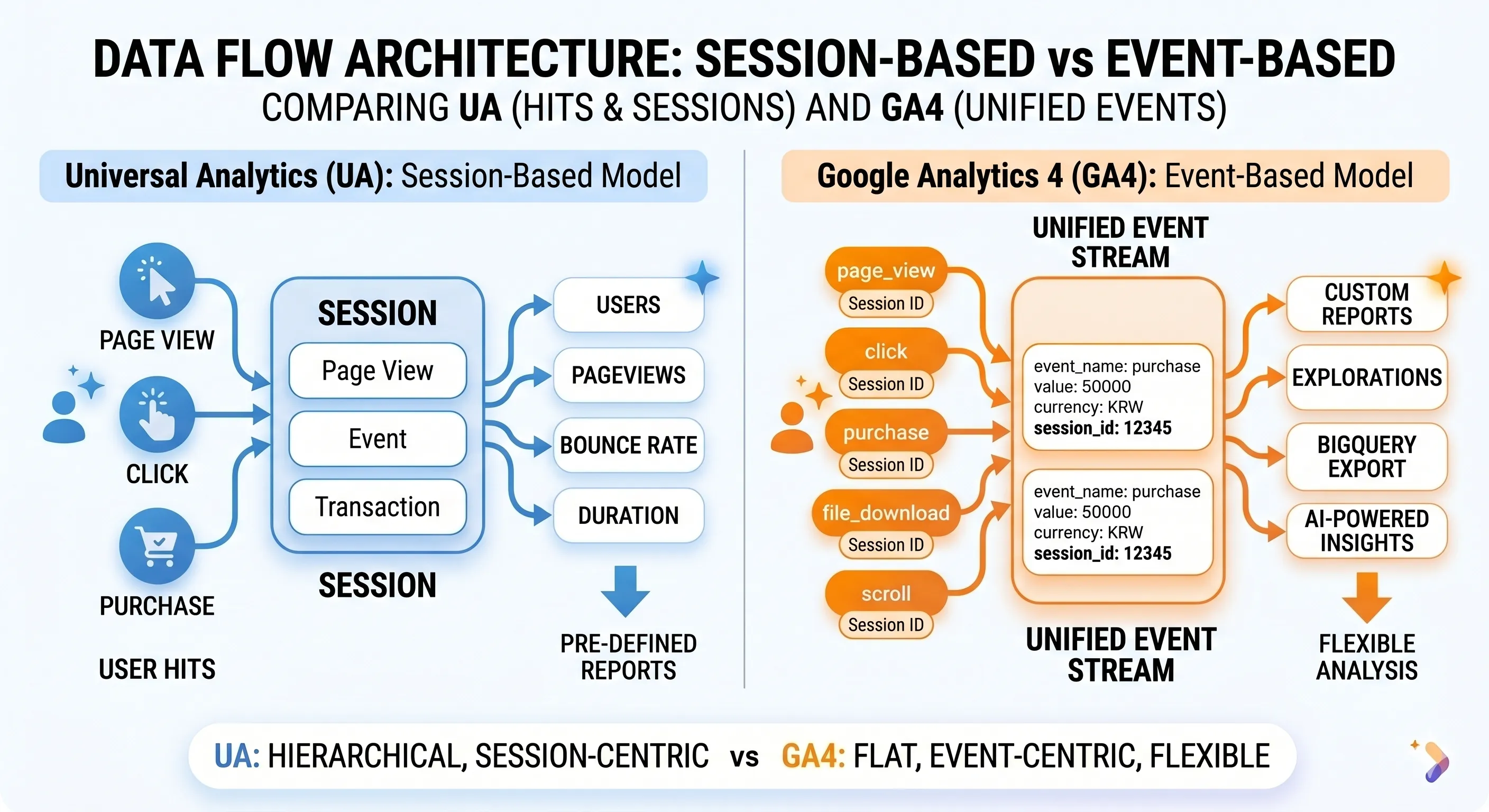
UA built data around visits. When a user came in, a session opened, and all actions within it were attributed to that session. GA4 records each action as an event. Opening a page, scrolling, clicking a button, making a purchase. Each is an independent event.
That difference in perspective creates different numbers and different reports.
What UA Couldn't Solve
UA was long the standard in web analytics. Google acquired Urchin Software in 2005, underwent major changes to become UA (Universal Analytics) in 2012, and held the position of default analytics tool for tens of millions of sites for nearly a decade.
But Google didn't keep fixing UA. In 2020, they released GA4 with a completely different structure. Why abandon a tool that worked well? There were three reasons.
People Moving from Web to Apps
UA was designed around PC browsers. That made sense at the time. But when people started using the internet on smartphones and apps, problems emerged.
Think of someone looking at products in an app and buying on PC. UA had difficulty connecting these two actions to the same person. Different devices meant different cookies, and different cookies meant different people. It wasn't easy to see the same person's journey as one continuous flow.
Cookies Started to Falter
UA heavily relied on browser cookies to identify users. When you first visited a site, it planted a unique cookie, and next time it checked that cookie to see if you were the same person.
From the late 2010s, this method began to falter. Europe's GDPR required consent for personal data collection. Apple reduced cookie lifespan in Safari through ITP (Intelligent Tracking Prevention). Google Chrome announced it would eliminate third-party cookies.
A tool relying only on cookies couldn't withstand this change.
From Aggregation to Prediction
The direction of analysis was also shifting. From confirming "what happened yesterday" to predicting "what will happen tomorrow." UA was strong at aggregation, but its design didn't fit well with machine learning.
Ultimately, Google chose to build new rather than fix old. GA4 officially launched in October 2020, and on July 1, 2023, UA's data collection stopped completely.
How GA4 Sees the World
Events, Not Sessions
The most fundamental difference between UA and GA4 is the unit of data.
UA's basic unit was Session. When a user accessed the site, a session opened, and everything within it was attributed to that session. Page views, clicks, purchases.
GA4's basic unit is Event. Each action occurring on the site is recorded as an independent event.
| Action | GA4 Event Name |
|---|---|
| Opened a page | page_view |
| Scrolled 90% of page | scroll |
| Clicked external link | click |
| Started video playback | video_start |
| Completed purchase | purchase |
Sessions haven't disappeared. They start with a session_start event, and all subsequent events have a session ID attached as a parameter. Rather than being the protagonist, session has become an attribute that connects events. Because of this structure, GA4 can handle web and apps identically. An app's screen_view and web's page_view have the same structure.
What Does an Event Look Like?
If an event only had a name, you'd only know an action occurred. What tells you where and in what context that action happened is a Parameter. Every event in GA4 consists of a name and parameters.
When opening a post on this site, the page_view event actually has this structure:
Event name: page_view
Parameters:
  page_location: "https://dechive.dev/archive/ga4-introduction"
  page_referrer: "https://www.google.com"
  page_title: "GA4란 무엇인가"
  engagement_time_msec: 0
The moment an event occurs, this data is sent to Google's servers, where GA4 stores, aggregates, and displays it in reports.
Parameters fall into two types.
| Type | Description | Example |
|---|---|---|
| Event Parameter | Contextual information when the event occurred | Page URL, product price, category |
| User Property | Information about the user itself, independent of events | Login status, membership tier, language setting |
Once a user property is set, it automatically attaches to all subsequent events.
How GA4 Identifies Users
In UA, user identification depended on browser cookies. If cookies were deleted or you used a different device, you were recognized as a different person. It was common for one person using smartphone and PC interchangeably to be counted as two people.
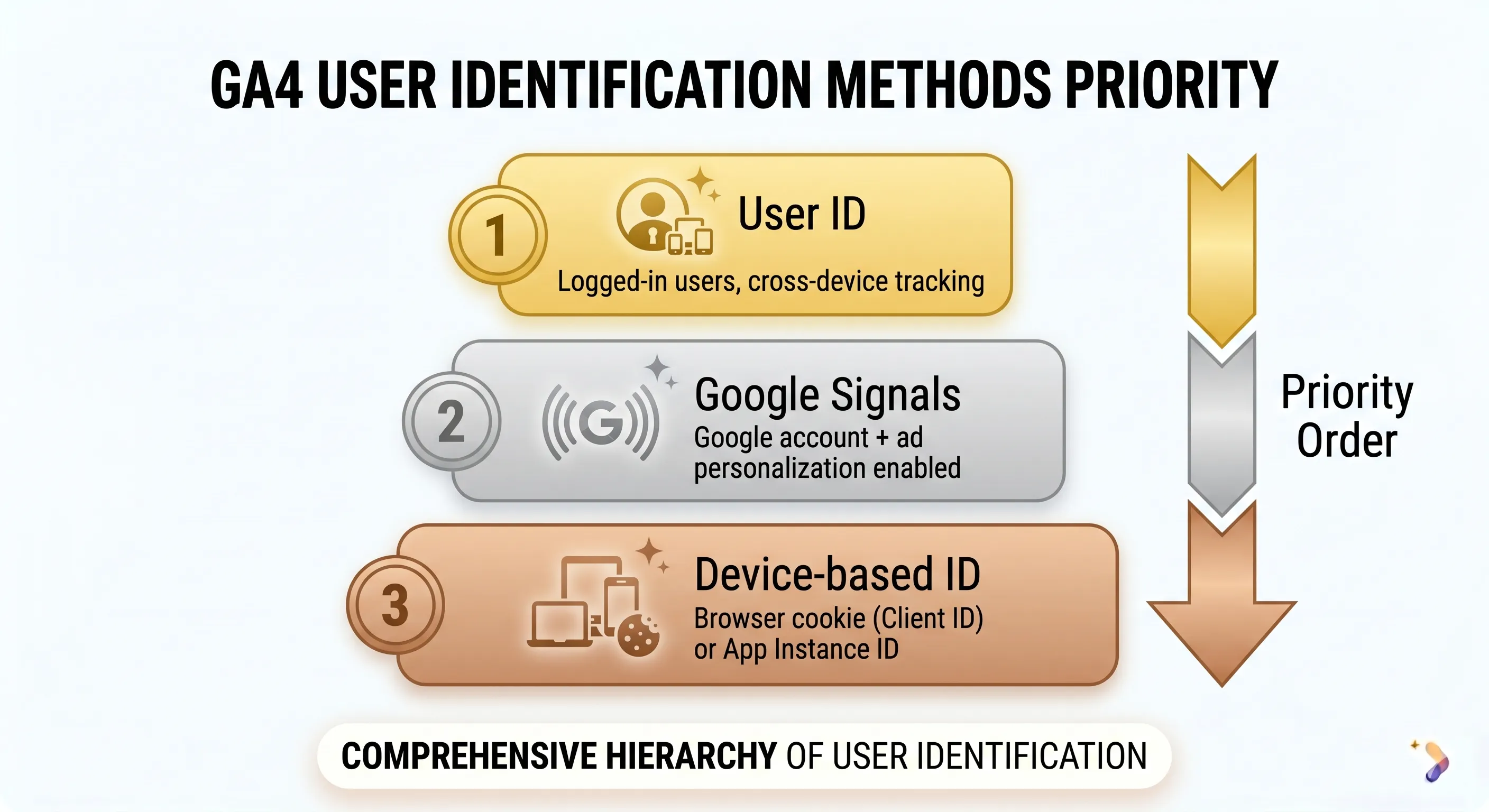
GA4 takes a multi-layered approach. If a more reliable identification method exists, it uses that first, then falls back to the next method.
| Priority | Method | Description |
|---|---|---|
| 1st | User ID (User ID) | Assign unique ID to logged-in users. Same user recognized across devices |
| 2nd | Google Signals Data (Google Signals) | When Google account logged in + ad personalization enabled, Google identifies by account |
| 3rd | Device-Based Identification | Browser cookie (Client ID) or app instance ID |
This priority can be set in GA4 property → Data Display → Reporting ID.
Raw Data Opened by BigQuery
In UA, BigQuery integration was only available in the paid version, Google Analytics 360. GA4 provides this for free.
The reports in GA4's interface show data pre-aggregated by Google. With large amounts of data, sampling can occur. Raw data exported to BigQuery avoids sampling, with each event as an individual record in tables named events_YYYYMMDD. More granular analysis becomes possible without seeing it in reports.
Four Types of GA4 Events
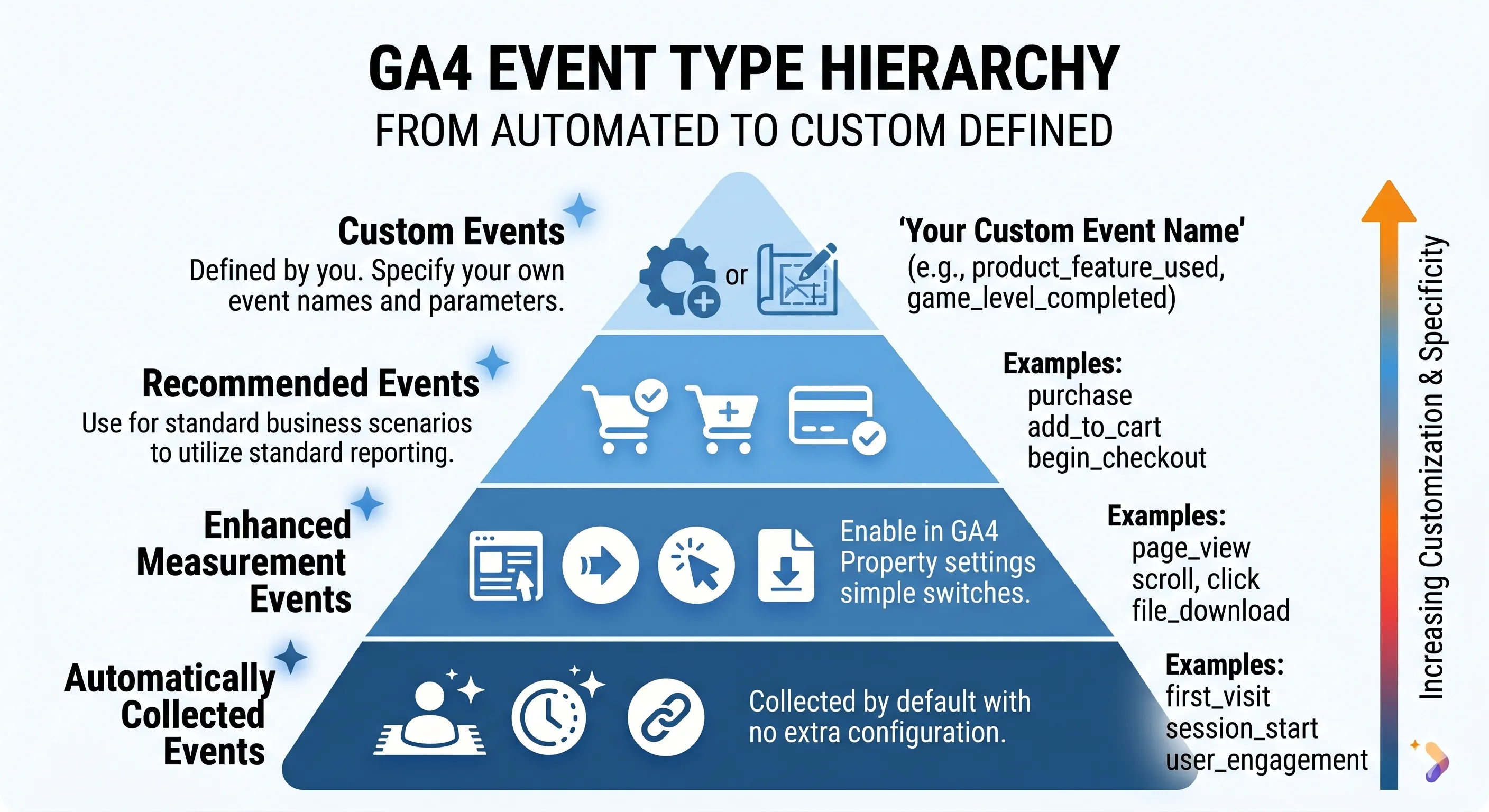
GA4 events differ significantly in character depending on collection method. Some come automatically just from installing a tag, some can be collected with one setting, some require following Google's recommended format, and some must be designed from scratch. The configuration method and report processing differ depending on which type, so all four must be distinguished.
1. Automatically Collected Events
Collected simply by installing the GA4 tag. No additional setup needed.
| Event | When It Occurs |
|---|---|
first_visit | When user visits site for the first time |
session_start | When session starts |
user_engagement | When staying 10+ seconds, conversion occurs, or 2+ pages viewed |
2. Enhanced Measurement Events
Enable enhanced measurement in Data Stream settings, and GA4 automatically detects and collects without code.
| Event | When It Occurs |
|---|---|
page_view | When page loads (enabled by default) |
scroll | When page scrolled 90%+ |
click | When external link clicked |
view_search_results | When viewing site search results page |
video_start | When starting YouTube video playback |
video_progress | When YouTube video played 10%, 25%, 50%, 75% |
video_complete | When YouTube video playback completes |
file_download | When file downloaded |
3. Recommended Events
Events Google recommends by industry. GA4 doesn't collect automatically, but following the prescribed name and parameter format allows automatic aggregation in standard reports. For e-commerce, for example:
| Event | Meaning | Required Parameters |
|---|---|---|
view_item | Product detail page viewed | items |
add_to_cart | Added to cart | items, value, currency |
begin_checkout | Checkout started | items, value, currency |
purchase | Purchase completed | transaction_id, value, currency, items |
Event names and parameters must match exactly for proper processing in GA4 reports.
4. Custom Events
Events that don't fall into the previous three types, which you design yourself. Define actions you want to collect matched to your site, and implement via code or GTM.
Custom events don't automatically appear in GA4's standard reports. To analyze them in reports, set a Custom Definition to register parameters as dimensions or metrics.
From Data to Report
Using GA4, situations arise. You clicked for sure but GA4 has no data, or yesterday's and today's numbers are strangely different. Understanding this flow lets you identify what happens at each stage.
When a user acts on the site, the installed GA4 tag detects the action and creates event data. JavaScript executes within the user's browser. With enhanced measurement enabled, scrolls, clicks, and page transitions are detected automatically, and custom events are handled by developer code or GTM.
The created event data is sent to Google's collection servers via HTTP POST request. You can verify it in the Network tab of browser developer tools as google-analytics.com/g/collect requests. If transmission fails, data just disappears. If a user exits too quickly or an ad blocker blocks GA4 requests, collection fails. GA4 doesn't capture 100% of actual actions, so it's better viewed as a tool for understanding trends rather than exact figures.
Data reaching servers goes through processing. Sessions are calculated, bot traffic filtered, location and device information categorized. Configured filters or event modifications are applied here. Processing takes time. Most data appears in reports within 24-48 hours after event occurs. Real-time reports can be seen within minutes, but to accurately see today's data in standard reports, it's safer to wait until tomorrow.
Processed data displays in GA4's interface. GA4 reports show pre-aggregated data rather than raw data, so sampling can occur with large amounts of data.
Common Terms You'll See in GA4
When you first open a GA4 report, unfamiliar words stand out. If you've used UA, it can be even more confusing. There are several cases where the same word has different calculation methods.
User
When you first see "user" numbers in GA4 reports, they often appear lower than UA. That's because GA4 divides users into two categories for aggregation.
| Type | Description |
|---|---|
| Total Users | Number of users who visited at least once during selected period |
| Active Users | Users who started engaged sessions, triggered conversion events, or first opened app |
The "user" figure displayed by default in GA4 reports is active users. This is why numbers appear different when directly comparing to UA's user figures.
Session
The unit of interaction when a user visits the site. Starts with a session_start event and ends after 30 minutes of inactivity. Unlike UA, sessions don't forcefully split at midnight.
GA4 also introduces the concept of Engaged Session. Sessions meeting one or more of these conditions:
- Sessions lasting 10+ seconds on site
- Sessions where conversion events occurred
- Sessions viewing 2+ pages or screens
Conversion
Events directly linked to business goals like purchases, sign-ups, or inquiry submissions need separate management. Designate desired events as conversions, and GA4 reports aggregate them separately, and they can be used as optimization criteria when linking to Google Ads. This corresponds to UA's "Goal" concept.
Dimension and Metric
GA4 reports are always built from a combination of two questions: how will you divide data (dimension) and what will you see in divided data (metric)?
| Concept | Description | Form | Example |
|---|---|---|---|
| Dimension | Criteria for classifying data | String (text) | Country, device type, channel, page URL |
| Metric | Measurable number | Number | User count, session count, conversion rate |
When saying "active users by country," the dimension is country and the metric is active user count. Once you grasp these two concepts, finding desired data in reports becomes much easier.
Engagement Rate and Bounce Rate
In UA days, bounce rate was synonymous with metrics to improve. GA4 approaches this differently.
| Metric | Definition | Better When |
|---|---|---|
| Engagement Rate | Percentage of engaged sessions out of total sessions | Higher is better |
| Bounce Rate | Percentage of non-engaged sessions out of total sessions (= 100% - Engagement Rate) | Lower is better |
GA4's bounce rate and UA's bounce rate calculate differently. Don't directly compare figures from both tools.
Understanding GA4
Learning GA4 isn't about memorizing report menus.
It's about understanding what events you'll record for actions happening on your site. GA4 shows those actions as numbers.
That's why the first thing to grasp when learning GA4 should be perspective, not menus.
Not visits, but actions. Not sessions, but events.
Once you grasp this perspective, GA4's unfamiliar numbers gradually become readable language.